Drop the file
Drag a GLB, OBJ, FBX, STL, VOX, DAE, 3DS or PLY file (max 50 MB) into the import dialog.
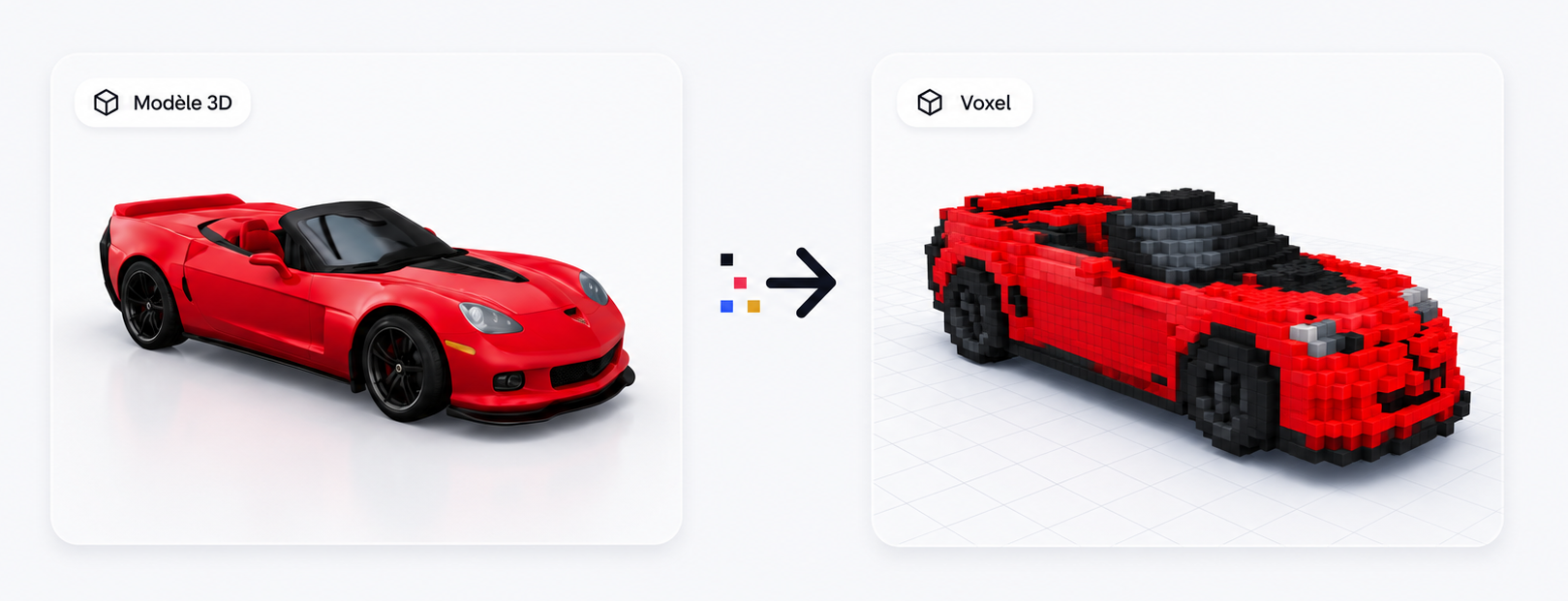
Drop your 3D model - we turn it into an editable voxel.
Got a 3D model in GLB, OBJ, FBX, STL or VOX format? Drop it in, get an editable voxel back. The converter voxelizes the mesh, quantizes the palette down to a clean voxel-style range, preserves animations when the source has them, and lands the result straight in our online editor for retouching.
Drag a GLB, OBJ, FBX, STL, VOX, DAE, 3DS or PLY file (max 50 MB) into the import dialog.
Pick resolution (32³ default), up-axis, solid vs hollow mode. Preview updates live.
Click "Convert and import". The voxelizer quantizes the palette and rasterizes the mesh into the chosen grid.
The voxel lands in the editor. Repaint, animate, retouch, then export to GLB or sprite sheet.
GLB, glTF, OBJ, FBX, STL, VOX, DAE, 3DS, PLY - plus Assimp formats (LWO, AC, B3D, X, MD2, MD3). 50 MB upload cap.
Source colors are reduced to a clean 16-32 color palette tuned for voxel pixel art. No manual swatch picking.
Pick 24³, 32³, 48³ or 64³ depending on your detail/legibility tradeoff. 32³ is the recommended default.
Auto-detected (Y-up Three.js, Z-up Blender) with manual override - fix orientation in one click if needed.
Solid fills the interior - clean for raster shapes. Hollow keeps it as a shell - useful for STL scans and rigged FBX.
GLB/glTF/FBX/DAE animations are imported as-is. You can replay them, edit them, or add new ones with the AI.
Detailed how-to pages for each format - GLB, OBJ, FBX, STL, VOX, DAE, 3DS, PLY - including format-specific tips on animation handling, axis orientation, and palette settings.
GLB, glTF, OBJ, FBX, DAE (COLLADA), 3DS, PLY, STL, VOX (MagicaVoxel), and a few extras handled by Assimp (LWO, AC, B3D, X, MD2, MD3). Maximum file size is 50 MB. If your format is not in the list, export it as OBJ or GLB from Blender first.
Yes for animated formats (GLB, glTF, FBX, DAE) - the source animations are imported. For static formats (OBJ, STL, PLY, 3DS) you can add animations afterwards with the AI generator or by editing frames manually.
You choose between 24³, 32³, 48³, and 64³. 32³ is the recommended sweet spot - enough detail to read the shape, compact enough to stay legible. Use 64³ for complex models or 24³ for a chunky pixel-art look.
No - 3D-to-voxel import is fully free. Credits are only consumed by AI generation. You can import as many models as you want.
The "up axis" might be wrong. Three.js uses Y-up while Blender uses Z-up. The dialog has an axis override - toggle it if your model lies on the wrong face.
Yes - once imported, the model lands in the editor. You can repaint it, retouch voxel by voxel, add animations with the AI, or export it directly to GLB or pixel art sprite sheet.
You can try, but the AI animation feature ("Add animation") is trained on AI-generated voxels. On imported models, results are sometimes broken - proportions get distorted or animations look off. Manual frame editing is more reliable for imported assets.
Free, no install, no signup needed for a first try.